Quizzes
Quizzes help reinforce learning and give you insight into where students are struggling.
Create a quiz lesson
- Inside a module, click Add Lesson → Quiz
- Give the quiz a title (e.g. "Module 1 Knowledge Check")
- Click Add Question
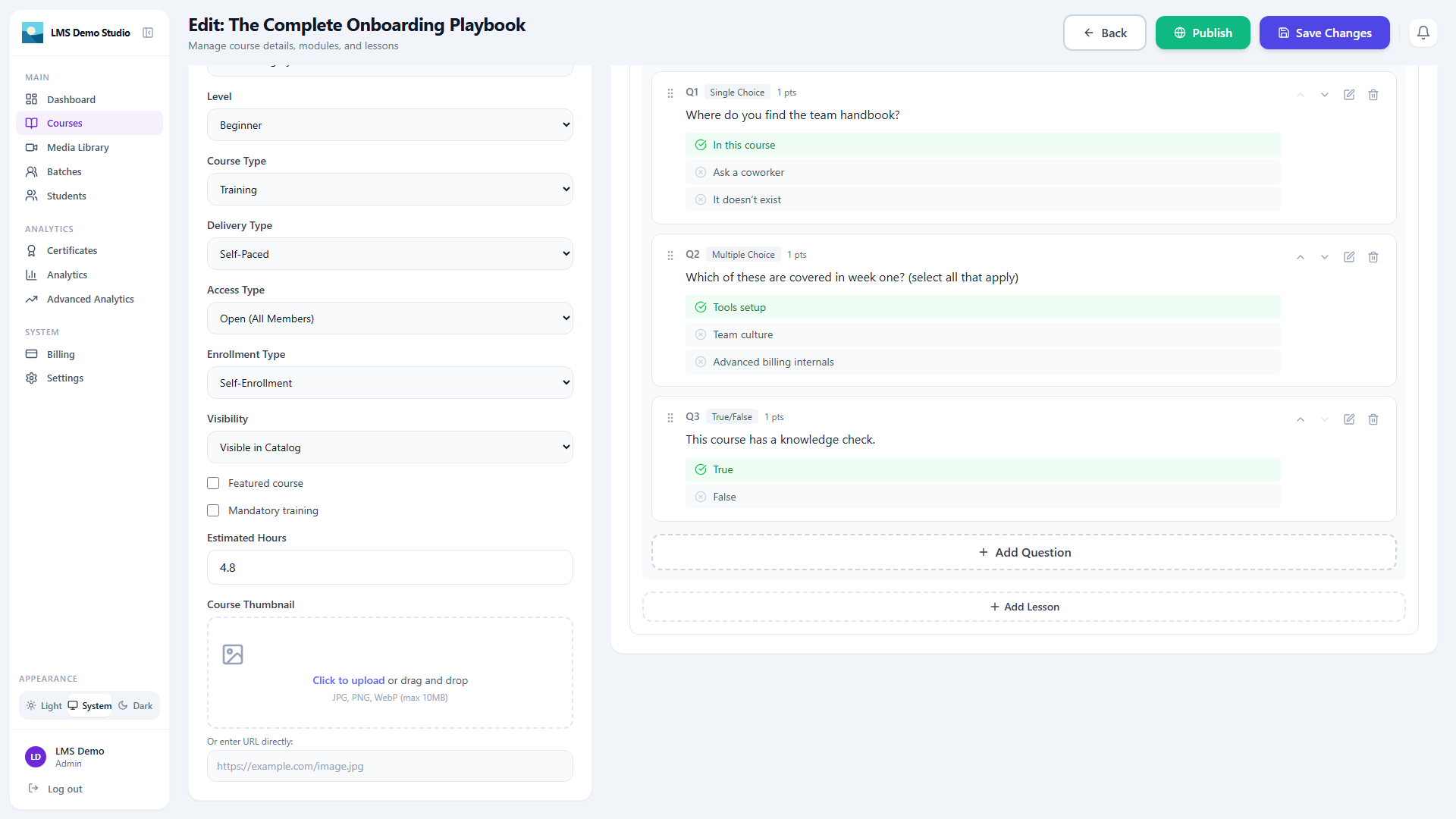
Question types
| Type | Description |
|---|---|
| Single choice | Student picks one correct option |
| Multiple choice | Student picks all correct options |
| True / False | Binary yes/no question |
For each question:
- Enter the question text
- Add answer options (2 or more)
- Mark the correct answer(s)
- Optionally add an explanation shown after submission
Quiz settings
| Setting | Description |
|---|---|
| Passing score (%) | Minimum percentage to pass (e.g. 70%) |
| Time limit (minutes) | Enforce a countdown timer per attempt (leave blank for none) |
| Shuffle questions | Randomize question order each attempt |
| Shuffle options | Randomize answer option order |
| Show results after submit | Whether students see their score immediately after submitting |
| Allow retakes | Whether a student can attempt the quiz again |
| Max attempts | Limit how many times a student can retake the quiz (leave blank for unlimited) — only shown when retakes are allowed |
View quiz results
Go to Courses → [Course] → [Student] to see:
- Quiz score for each attempt
- Which questions were answered correctly
- Number of attempts taken
From the course analytics page you can also see average scores per question — questions with low average scores indicate concepts that may need clarification.