Assignments
Assignments are lessons that require students to submit work — a file, a written response, or a URL. Unlike quizzes, assignments are graded manually by an instructor.
Assignments vs. quizzes
| Assignments | Quizzes | |
|---|---|---|
| Grading | Manual (instructor) | Automatic |
| Submission type | File, text, or URL | Multiple choice / short answer |
| Pass/fail logic | Set by instructor | Score threshold |
| Feedback | Free-text from instructor | Correct answer shown |
Add an assignment lesson
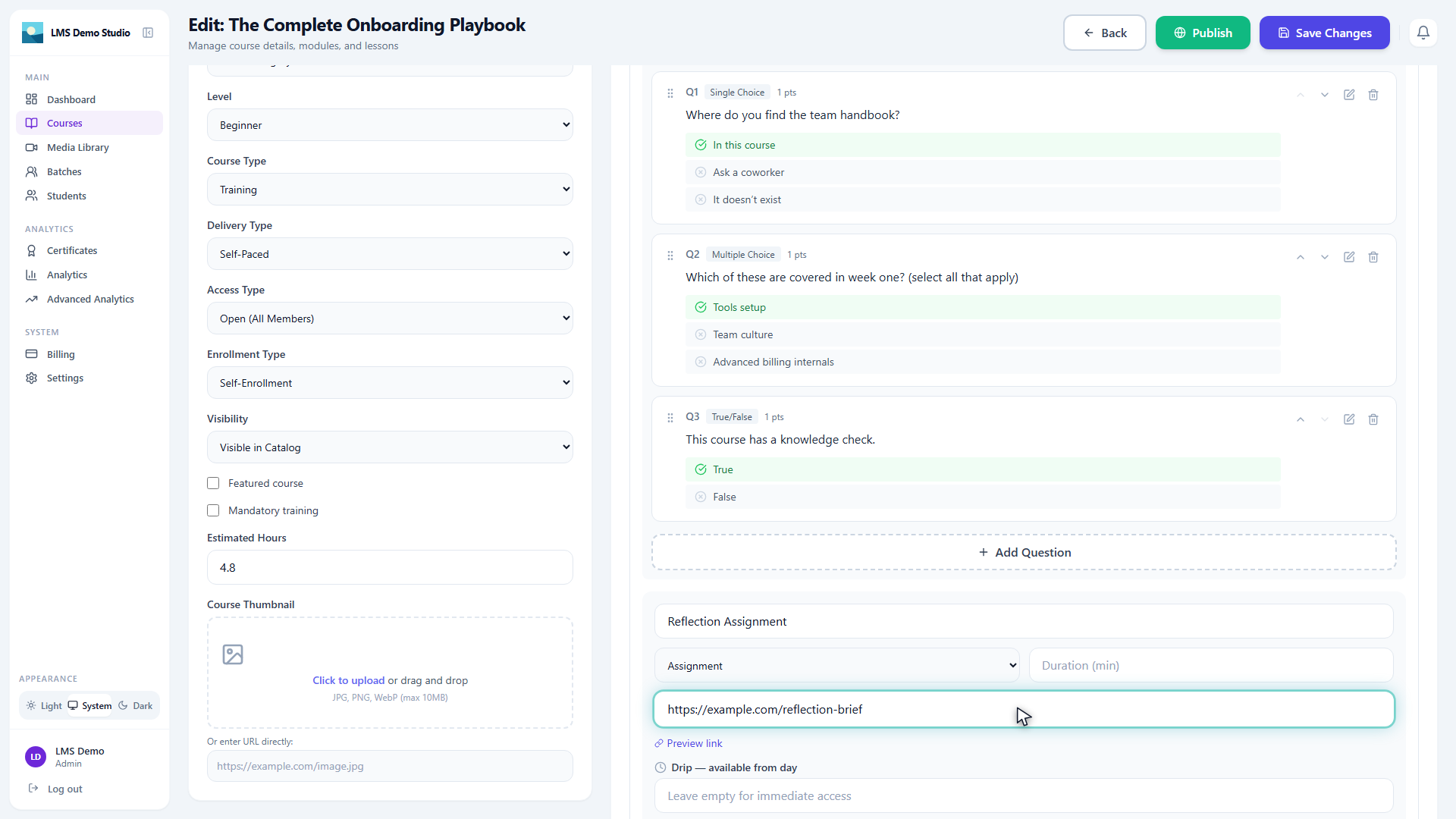
- Open a course and go to the module where you want the assignment
- Click Add Lesson
- Set Type to Assignment
- Fill in:
- Title — shown in the course outline
- Assignment URL or resource link — the only field this lesson type has. Point it at wherever the actual instructions live (a doc, a brief, a spec) — there's no rich-text instructions field or due date on the lesson itself
- Click Save
Every student gets all three submission methods (Write Text, Submit Link, Upload File) — there's no way to restrict a given assignment to fewer than all three.
Grading submissions
Find submissions
- Go to Courses → [Course] → Assignments tab, or
- Go to Students → [Student] → Submissions
The submissions list shows each student's name, submission date, submission type, and current status (Pending, Graded, Revision Requested).
Assign a score and feedback
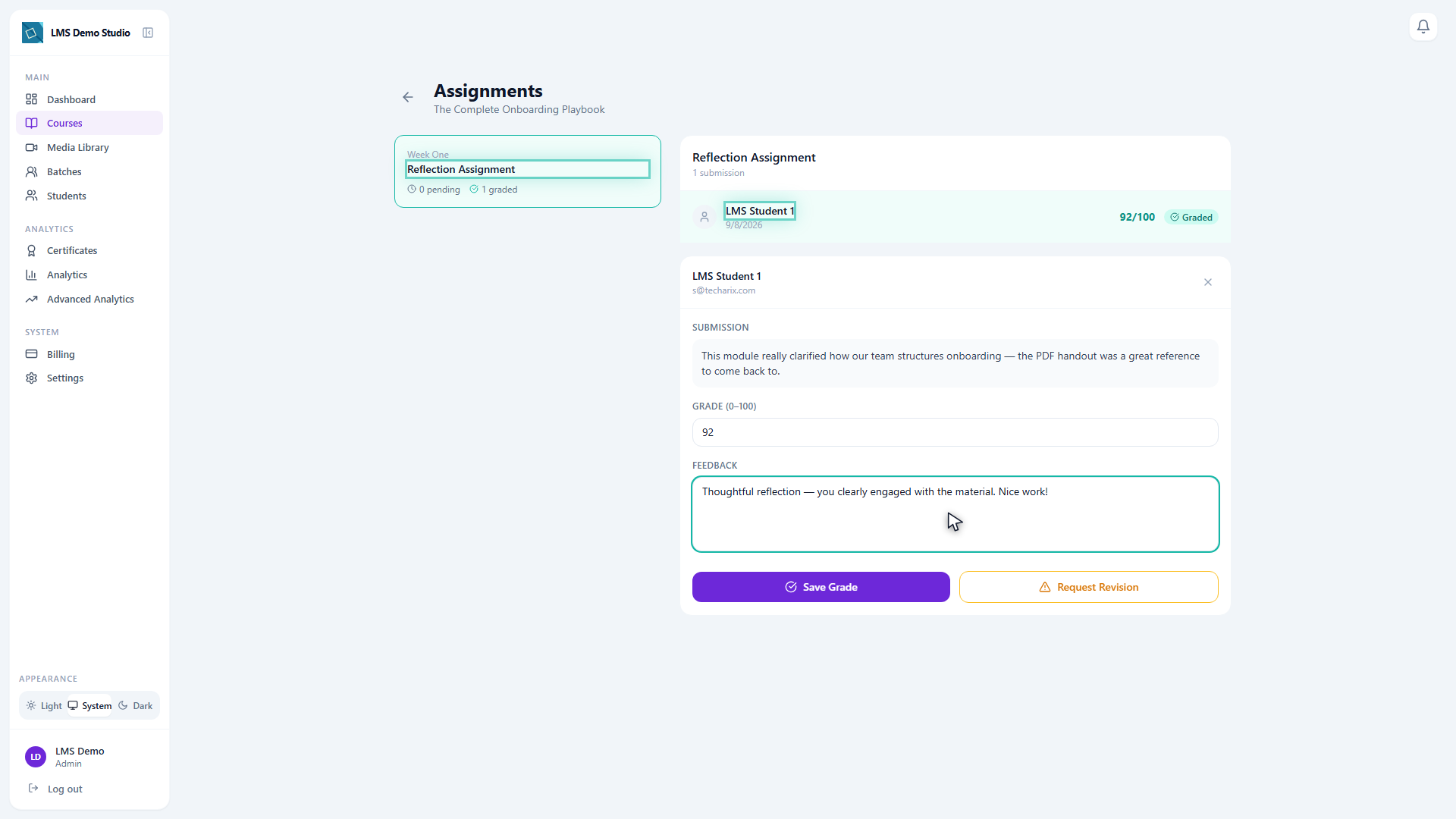
- Click a submission to open the grading panel
- Review the submission:
- File — click to download
- Text — shown inline
- URL — opens in a new tab
- Enter a Score (0–100)
- Enter Feedback — shown to the student; supports plain text
- Click Save Grade
The student gets an in-app notification (and a push notification, if enabled) that their assignment has been graded — this doesn't currently go out as an email.
Request a revision
- In the grading panel, enter a note in Feedback explaining what needs to change
- Click Request Revision instead of Save Grade
The student sees your note and a Revision Requested status on the assignment, and can resubmit — their new submission replaces the old one and returns to a normal pending-review state.
Student experience
Submitting an assignment
- Open the course and navigate to the assignment lesson
- Choose a submission method — Write Text, Submit Link, or Upload File are all always available
- Submit
Viewing grade and feedback
Open the assignment lesson again from My Courses → [Course] — your submission is shown, and once it's graded, the grade and instructor feedback appear underneath it.