Live Sessions
Live sessions let you schedule instructor-led video calls and surface them to students inside the platform with join links, countdown timers, and calendar exports.
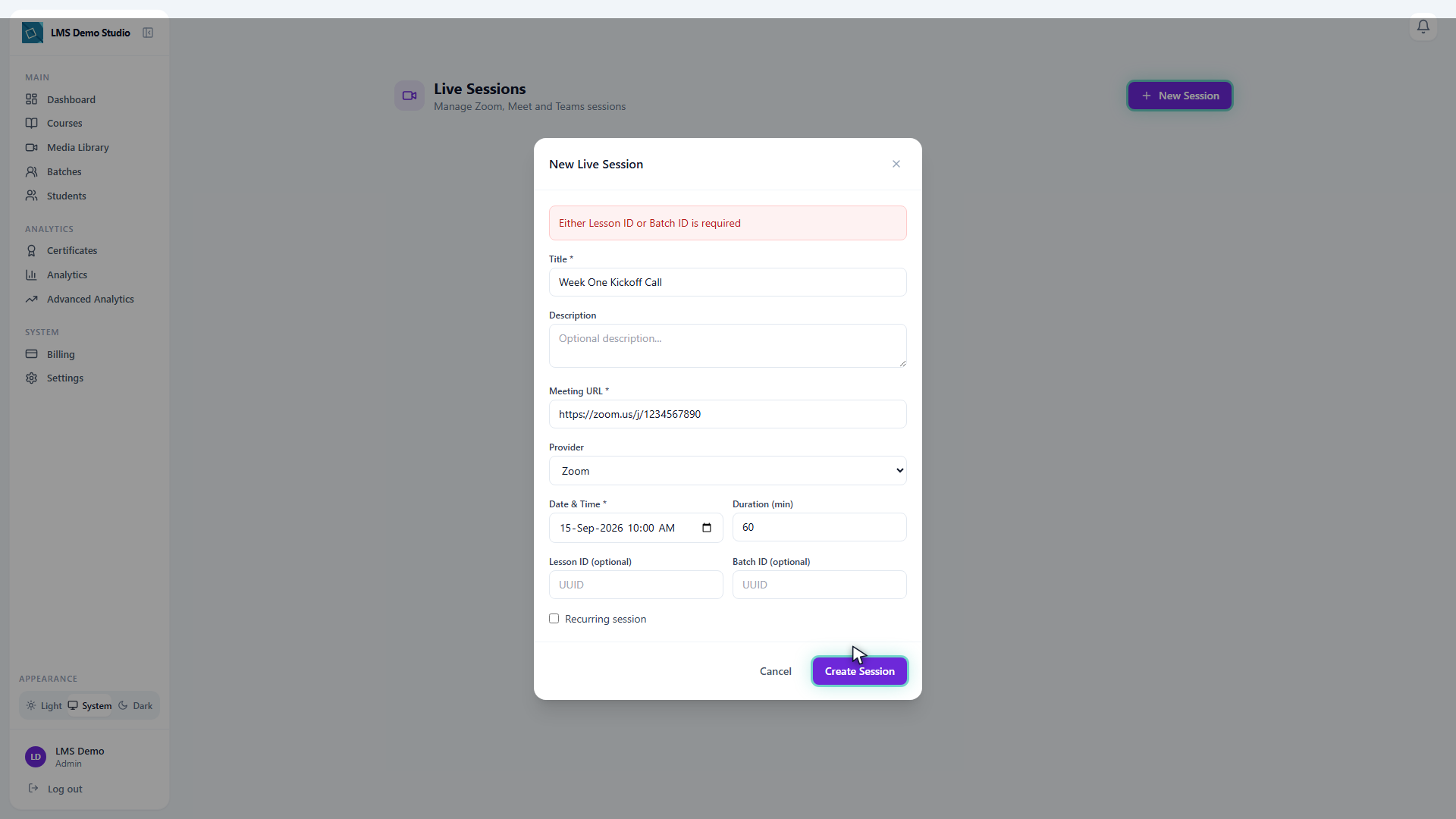
Create a live session
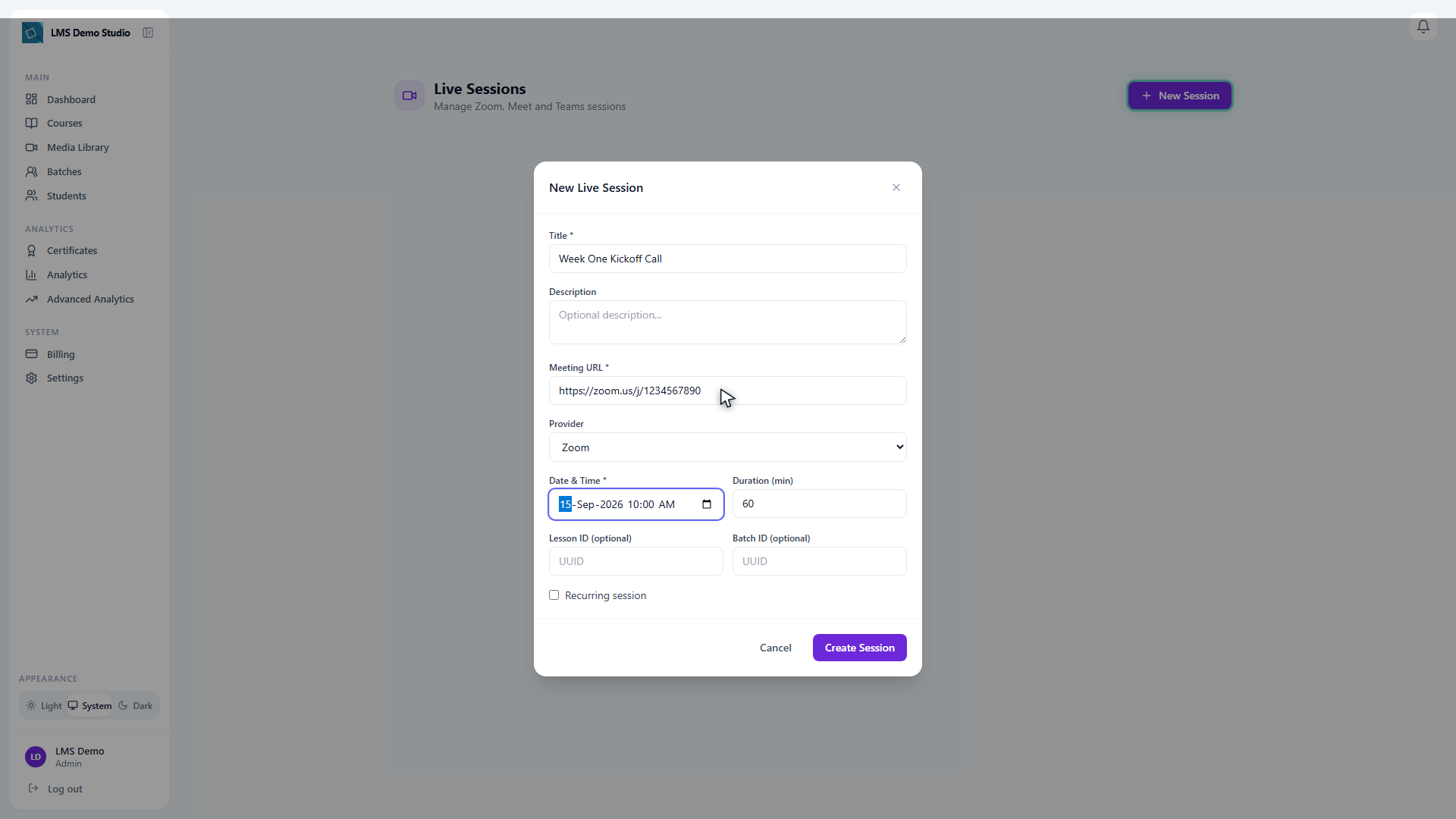
- Go to Live Sessions in the sidebar
- Click New Session
Session settings
| Field | Description |
|---|---|
| Title | Name of the session (shown to students) |
| Description | Optional agenda or notes for students |
| Meeting URL | The join link from your video provider |
| Provider | Video platform (see table below) |
| Date & time | Start time in your timezone |
| Duration | Expected length in minutes |
| Lesson ID / Batch ID | Links the session to a specific lesson or batch — at least one is required. These are pasted in directly rather than picked from a dropdown, so have the ID handy (visible in the lesson/batch's own URL) |
| Recurring session | Marks the session as repeating |
Supported video providers
| Provider | How to get the meeting URL |
|---|---|
| Zoom | Create a meeting in Zoom → copy the "Join URL" |
| Google Meet | Create an event in Google Calendar → copy the Meet link |
| Microsoft Teams | Create a meeting in Teams → copy the join link |
| Webex | Create a meeting in Webex → copy the meeting link |
| Other | Paste any HTTPS URL (works with any provider) |
The platform stores and displays the meeting URL — it does not create or manage meetings in your video provider. You must create the meeting in your provider first.
Student experience
Upcoming sessions
Students see all upcoming live sessions on the Live Sessions page (linked from their dashboard). Each session card shows:
- Session title and course
- Date, time, and duration
- Countdown timer (days, hours, minutes)
- Add to Calendar button (downloads an
.icsfile for Google Calendar, Outlook, or Apple Calendar)
Joining a session
When the session is within 15 minutes of starting, a Join Session button becomes active. Clicking it opens the meeting URL in a new tab.
If the session is within a lesson, the Join Session button appears directly in the lesson view.
Email reminder
Every student enrolled in the session's course or batch gets an email reminder about 24 hours before it starts. This is controlled by the Live session reminder toggle under Notifications → like the platform's other student-facing emails.
After the session
If a recording URL is set on the session, students see a Watch Recording button in place of the join link once the session has ended. There's currently no field in the session form to set this yourself — reach out to support if you need a recording linked to a past session.