Lessons & Content
Lesson types
Video lesson
Video is hosted and delivered for you by default — no provider setup needed. See Video Hosting → for how it works and how to bring your own provider if you'd rather.
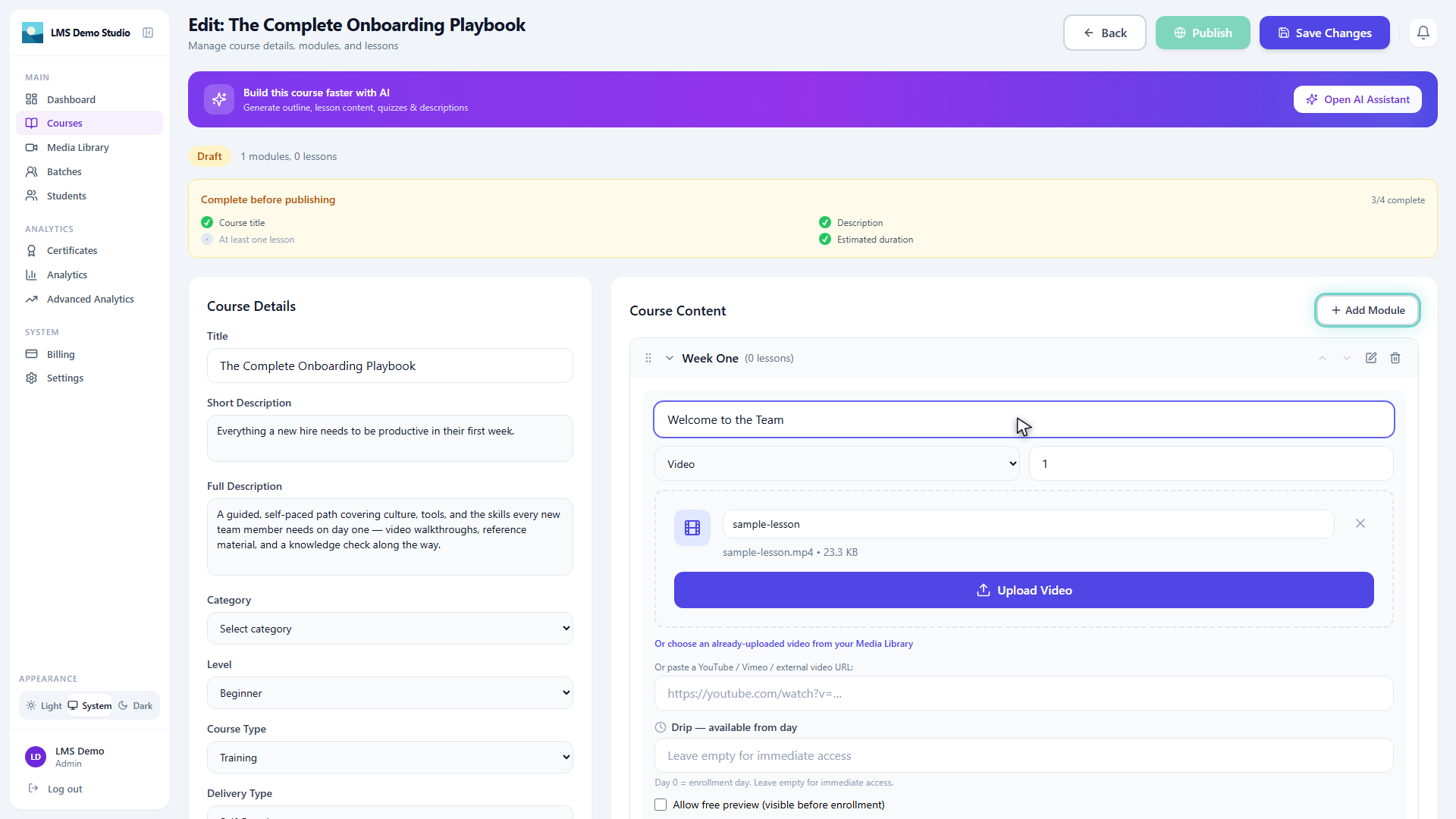
To add a video:
- Inside a module, click Add Lesson → Video
- Click Upload Video and select an MP4 file (up to 10 GB)
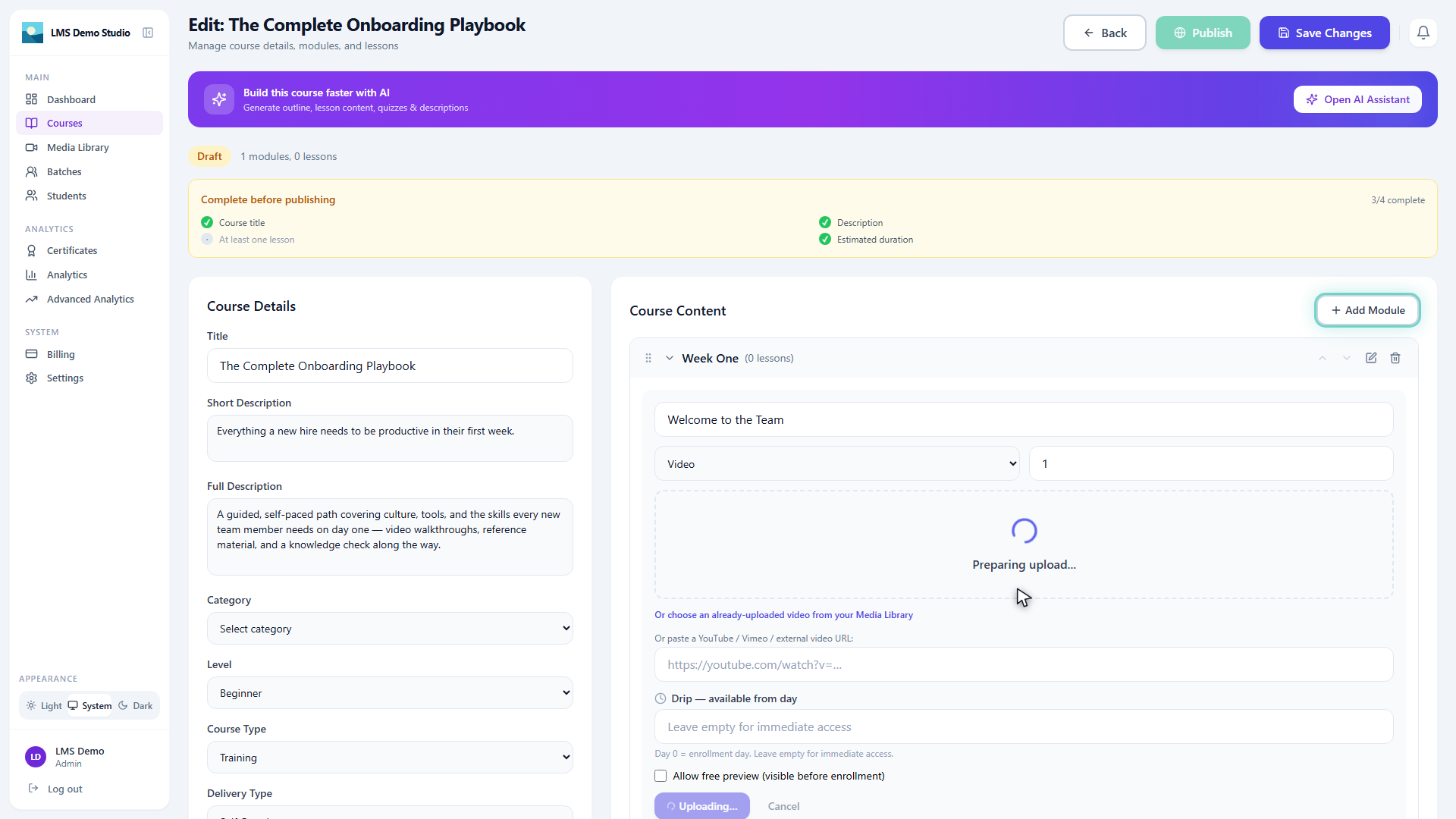
- The video transcodes automatically once uploaded — this takes a few minutes depending on file size
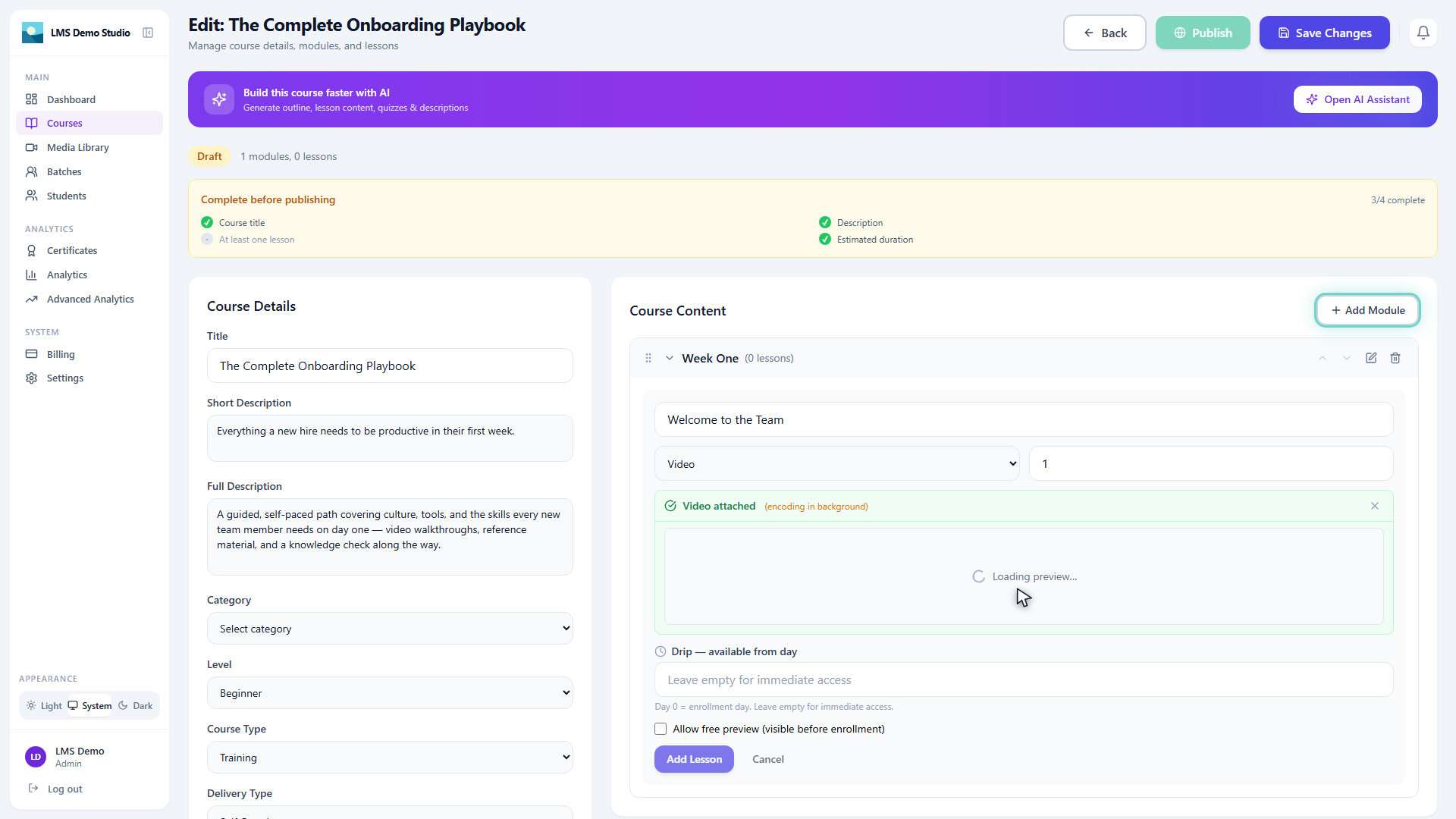
- Once transcoded, the lesson is ready to play
Text lesson
Rich-text lessons support:
- Headings and body text
- Bold, italic, underline
- Bullet and numbered lists
- Images (uploaded to your storage)
- Code blocks
- Embedded links
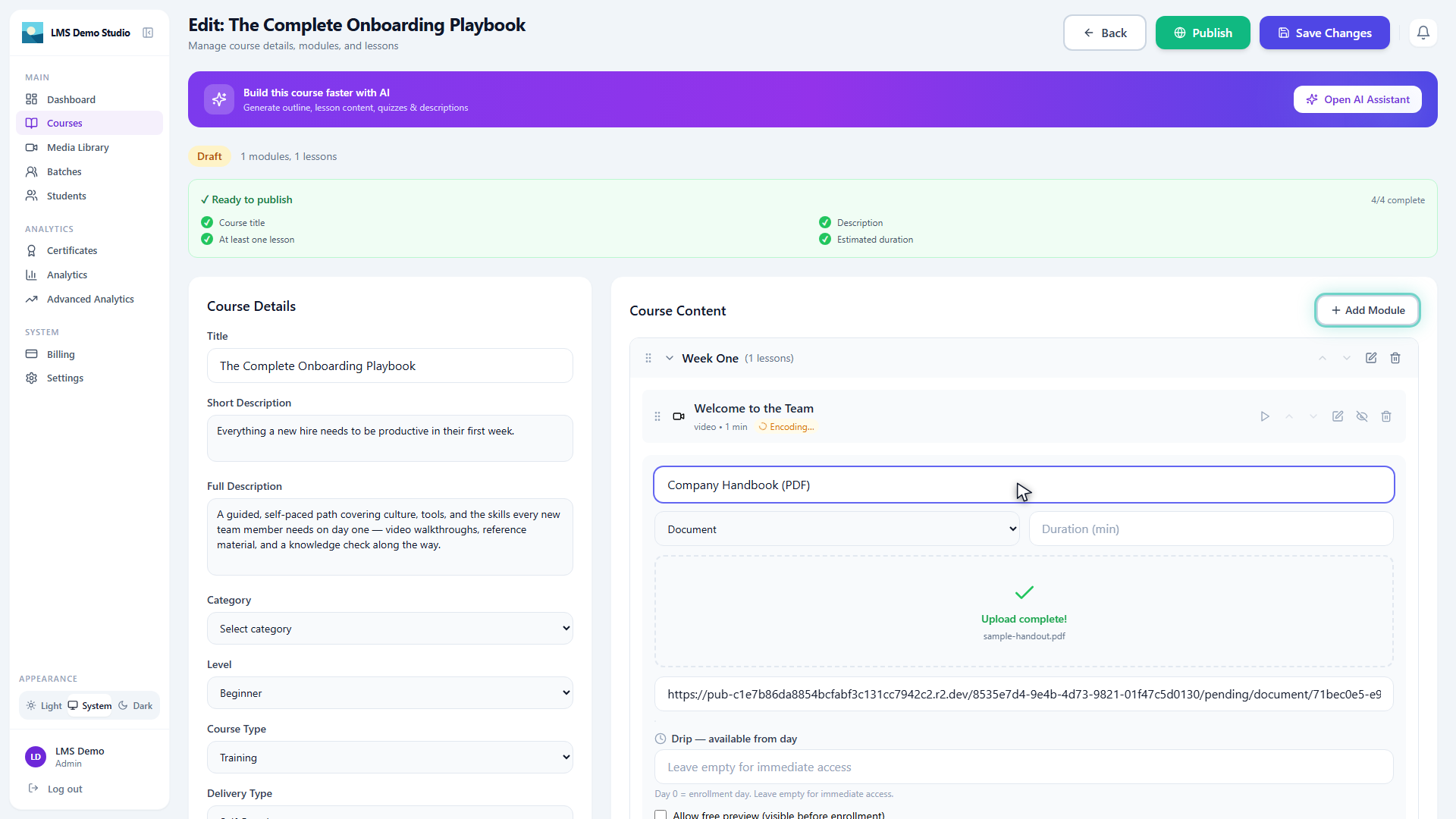
Document lesson
Upload a PDF handout, slide deck, or reading directly to a lesson — students view it inline without leaving the platform.
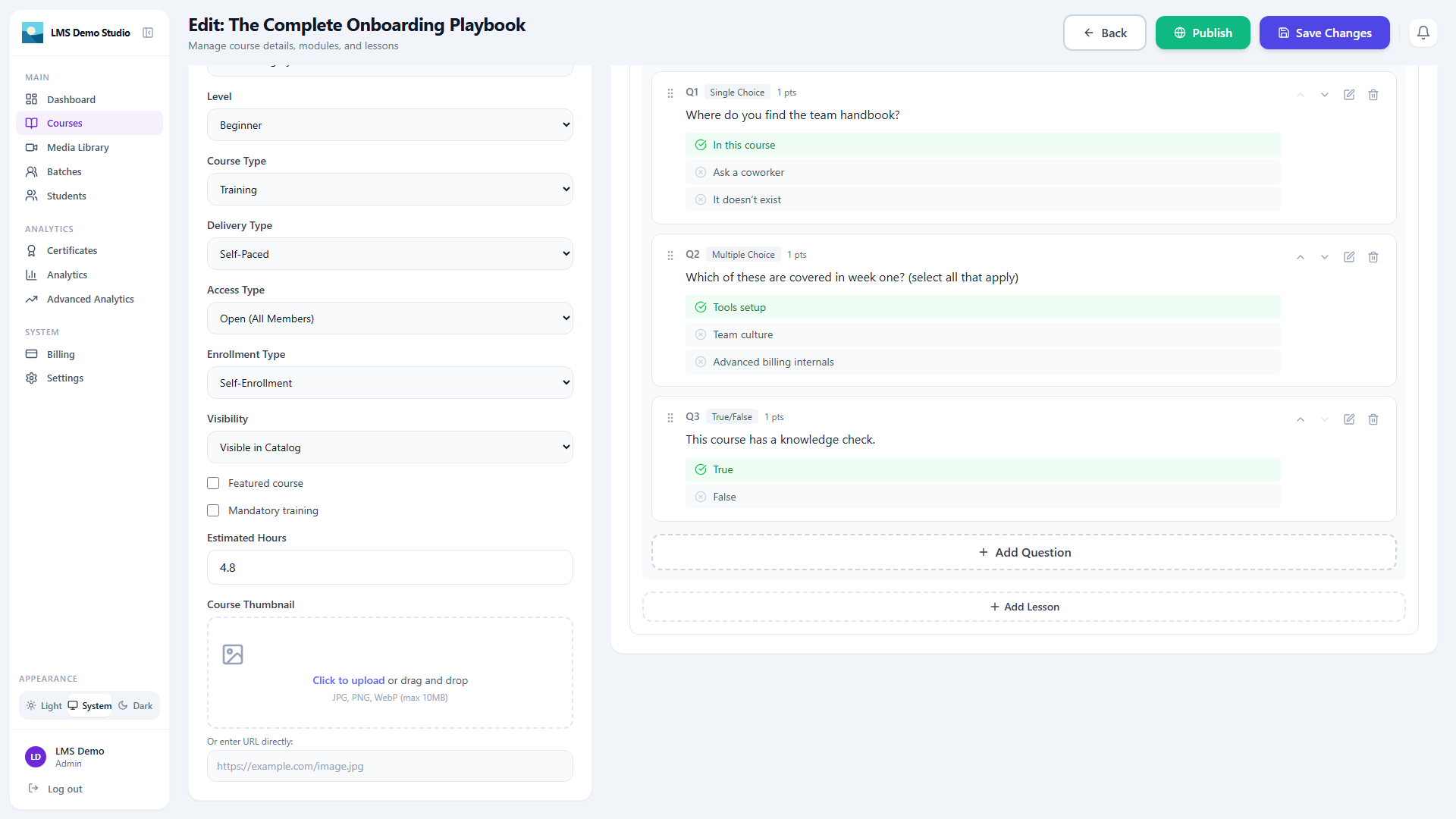
Quiz lesson
Quizzes can be placed anywhere in a module. See the Instructor Guide → Quizzes for full setup.
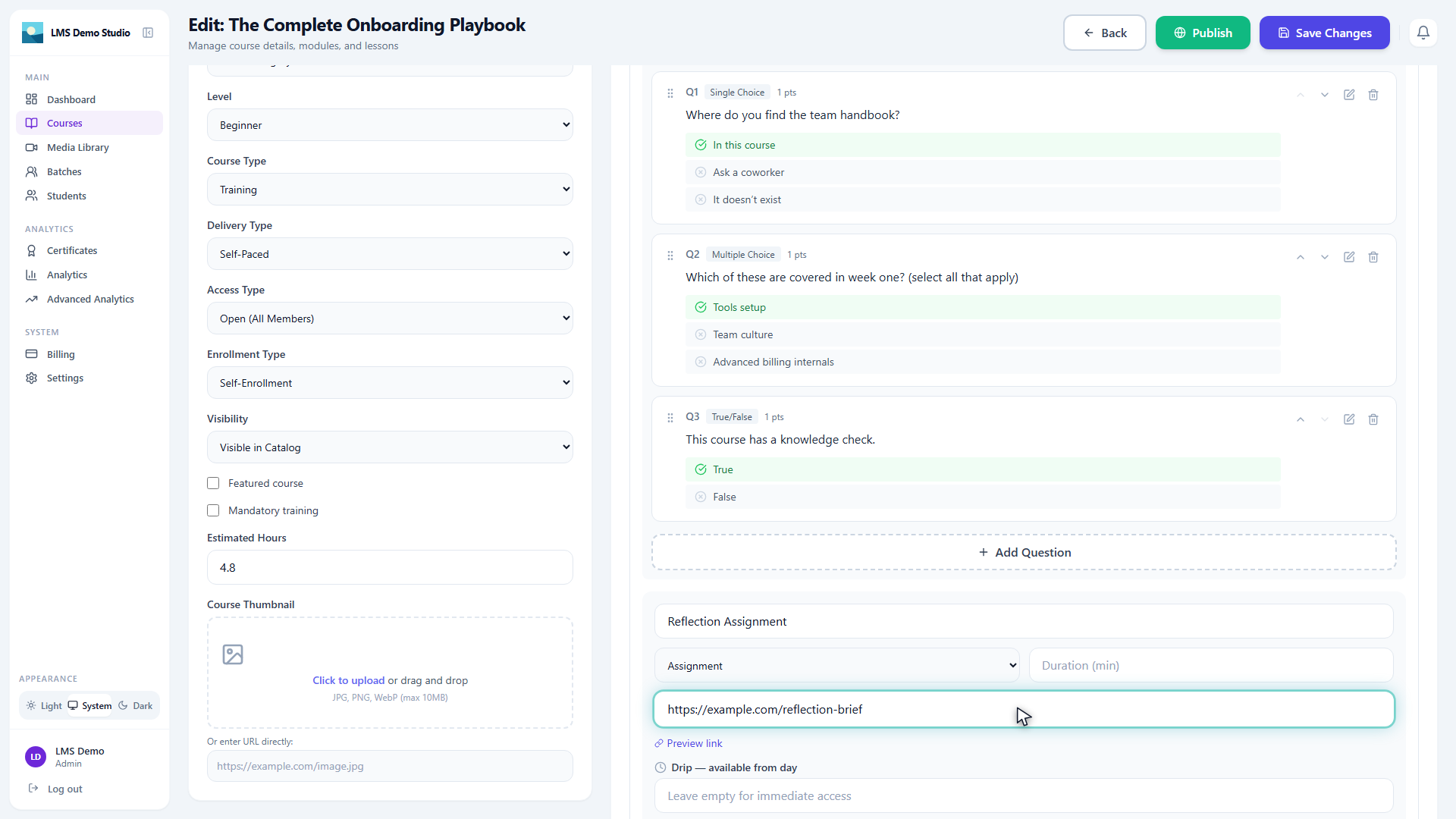
Assignment lesson
Set a written prompt for students to respond to in their own words, rather than a graded quiz. See Assignments → for grading.
Lesson resources
Attach downloadable files to any lesson — PDFs, slides, worksheets, templates.
- Open a lesson for editing
- Scroll to the Resources section
- Click Add Resource — paste a URL or upload a file
- Students see a Download button next to each resource in the lesson player
Free preview
Mark individual lessons as Free Preview to let non-enrolled visitors watch them. This is useful for showing a sample of your course content in the catalog.
Toggle Free Preview on/off when editing a lesson.
Drip content
Drip content releases lessons on a schedule after a student enrolls — useful for courses designed to be completed at a specific pace.
To set a drip delay on a lesson:
- Edit the lesson
- Set Available after to the number of days after enrollment (e.g.
7= unlocks 7 days after the student enrolls) - Leave blank for immediate access
Students see a "Unlocks in X days" indicator on locked lessons. Clicking a locked lesson shows when it becomes available — it is not skippable.
Reordering lessons and modules
Drag lessons within a module using the drag handle (⠿). Drag modules to reorder them within the course.